Free & open source · macOS 14+
Remote desktops,
the Mac way.
RDPeek is a native RDP client in pure Swift — hardware-decoded video, Mac shortcuts that land on Windows, and credentials in your Keychain, all while staying light on memory and CPU.
Signed download from GitHub Releases · MIT licensed
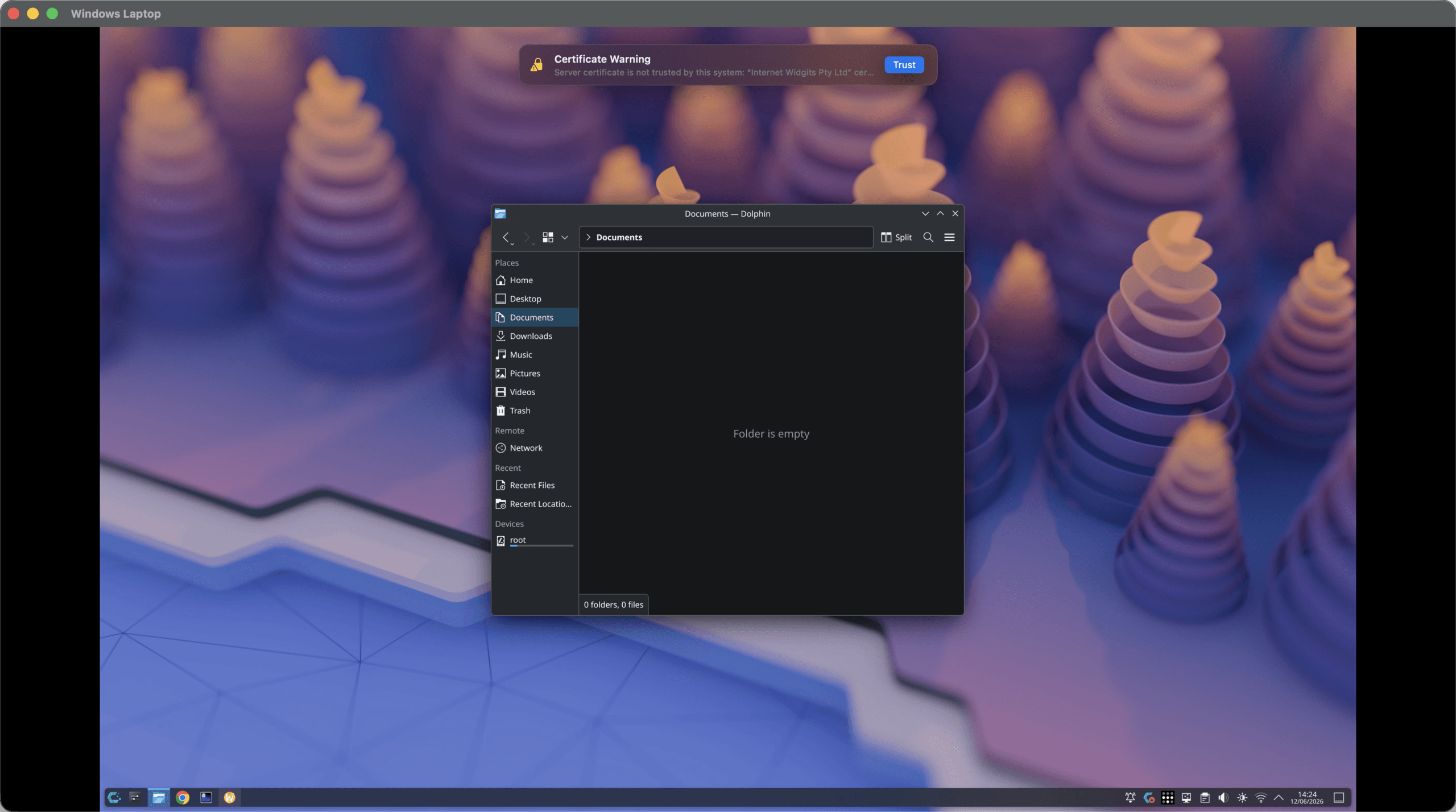
A live session: edge-to-edge video, glass titlebar, and the certificate trust banner doing its job.
The Connection Center
Every machine, instantly recognizable
Your PCs live in a searchable grid of gradient tiles — each device gets its own color, so you stop reading and start recognizing. Hover for the play button, double-click to connect, sort by name or recent use.
Go on, try it — search, sort, hover. The real one adds context menus, ⌘N, and Return-to-connect. One of these tiles has a favorite color it won’t commit to.
Adding a PC takes one field
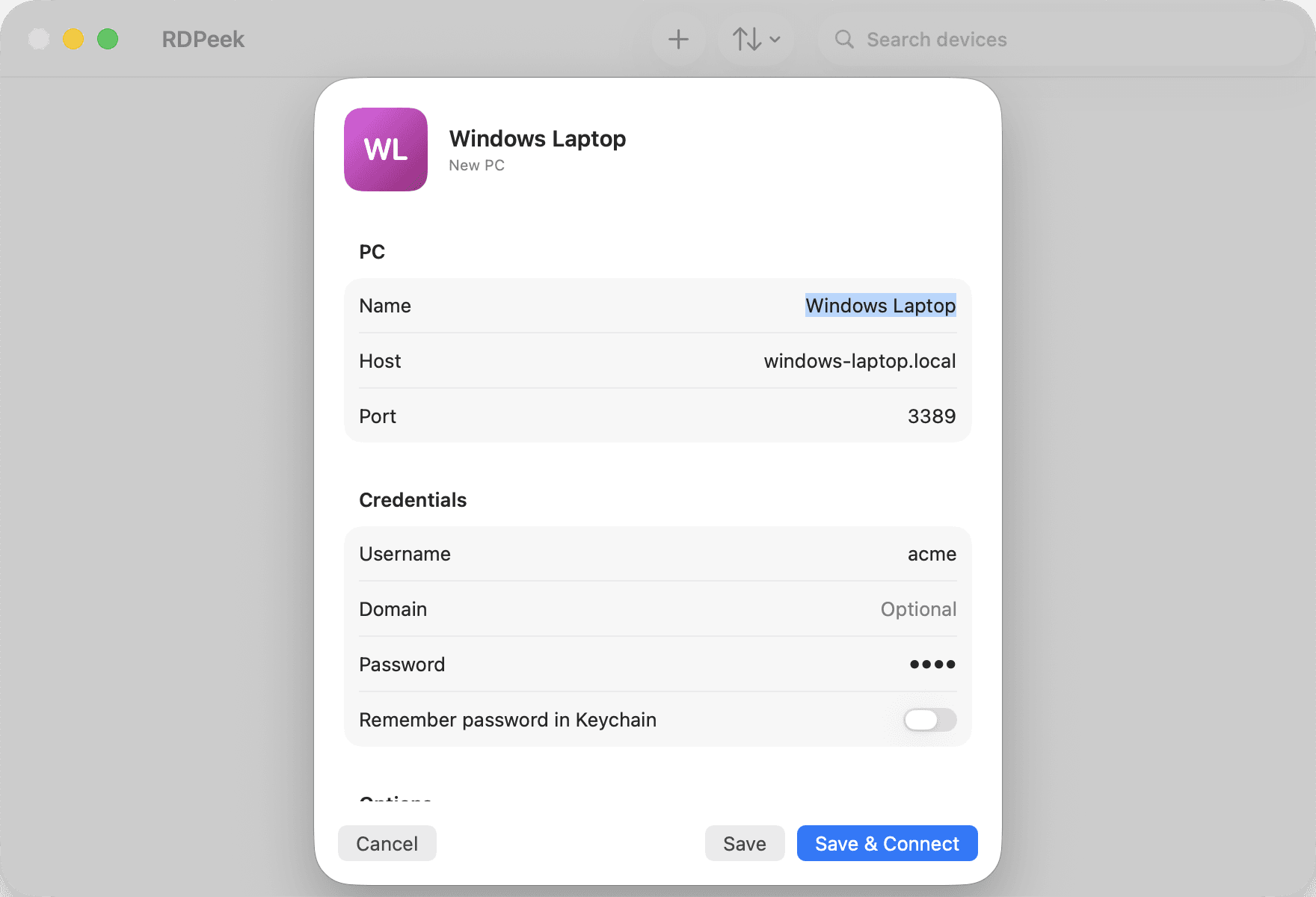
Press ⌘N, type a host, done. Name, credentials, clipboard, and audio are optional and editable later — and the tile preview updates live while you type, so you know exactly what lands in the grid.
Defaults for new PCs live in Settings, and deleting a PC cleans up its Keychain entry — with a confirmation first.
Sessions
Edge to edge, every frame on time
A session window is just your remote desktop — full-bleed video, a status pill, and a ⋯ menu. Everything else gets out of the way.
Hardware-decoded video
AVC420, AVC444, H.264, and HEVC are decoded by VideoToolbox — on the media engine, not the CPU.
Paced on the display link
Frames are presented on your display's own clock, so motion stays smooth instead of stuttering to the network's rhythm.
No resolution knobs
The remote desktop starts at your screen's size and re-fits when you resize the window. HiDPI aware, nothing to configure.
Glass titlebar, full-bleed video
Edge-to-edge video under a transparent titlebar that never overlaps the remote desktop's input area.
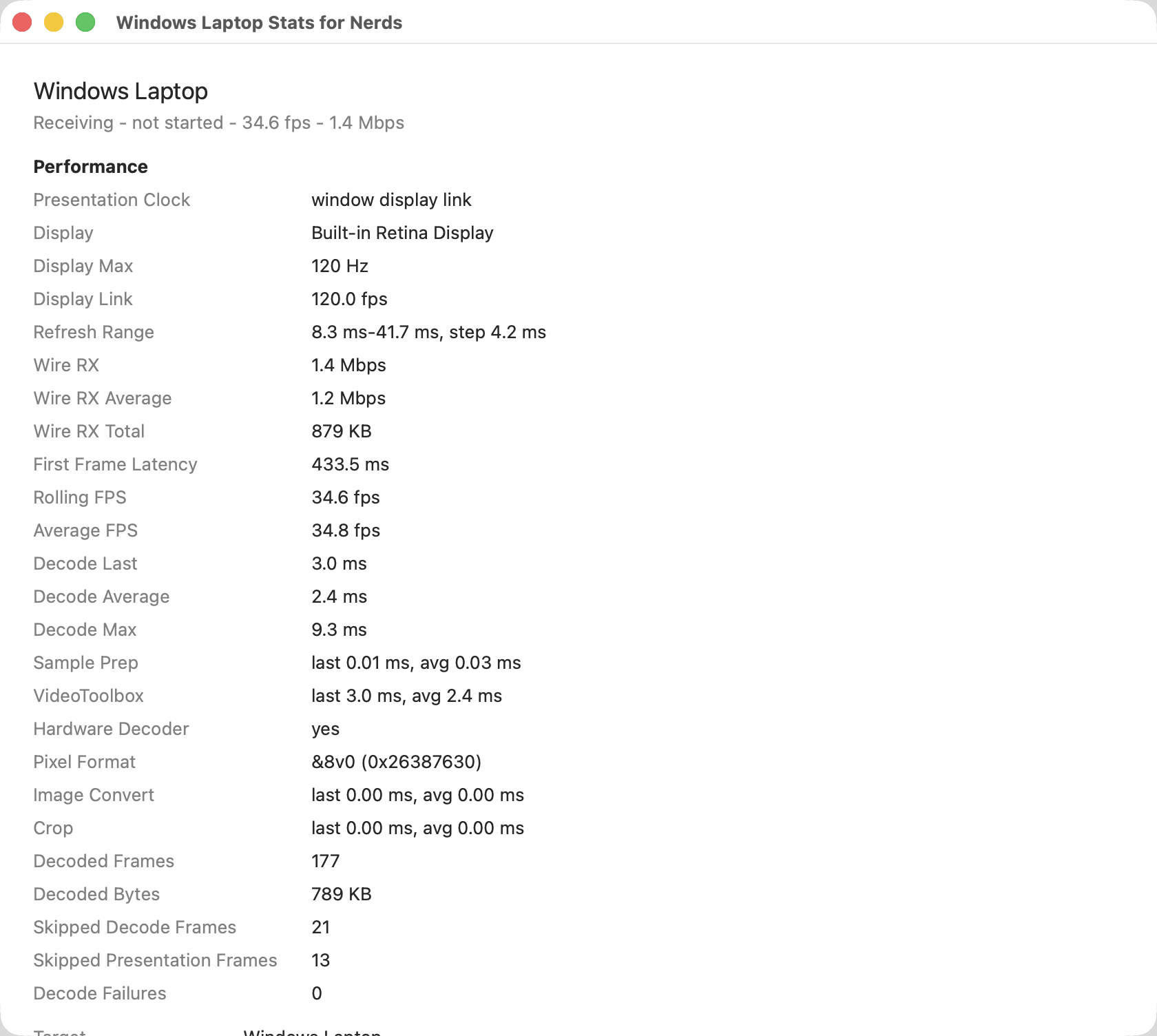
Stats for Nerds: live protocol and rendering diagnostics, one ⇧⌘D away. A lighter performance overlay chip lives in the session.
Input done right
Your shortcuts, their desktop
Inside a session, shortcuts that include ⌘ or ⌃ are sent to the remote desktop as scancodes — so Windows and Linux shortcuts just work. Plain typing arrives as Unicode, exactly as you typed it.
⌘ becomes ⊞ Win, ⌃ becomes Ctrl. Modifier state is reconciled on every event and released when the window loses focus, so nothing ever gets stuck down on the remote.
And on your Mac
- Add PC
- ⌘N
- Connect to the selected PC
- Return
- Delete the selected PC
- Delete
- Disconnect / cancel connecting
- ⌘.
- Stats for Nerds
- ⇧⌘D
- Settings
- ⌘,
Clipboard & security
Convenient, and careful about it
The clipboard works both ways for text and files — and you decide for how long. Credentials and certificates are handled the way a Mac app should handle them.
A clipboard on your terms
Share Clipboard
Continuous two-way sync for text and files while the session is open.
Sync Clipboard Now
A one-shot push of whatever you just copied.
Share for 30 Seconds
Time-boxed sharing that turns itself off. Paste the thing, and the channel closes.
Or keep it off
Clipboard sharing is a per-PC toggle in the editor, so a machine you don't trust never sees yours.
Security, stated plainly
Passwords live in the macOS Keychain
One item per username@host:port, deleted when you remove the PC or turn off remembering. A password typed without remembering stays in memory only until you quit.
Profiles never contain passwords
Device profiles are plain preferences — credentials are not in them.
Certificates are pinned per host
TLS evaluation is surfaced live at handshake time as a banner. Trusting pins that certificate's SHA-256 for that host and port; later connections must match it.